Designing Developer Metrics for GameEvents Unity Package
Designing Developer Metrics for the GameEvents Unity Package
💡 Active Development:
Follow progress and commits on the GameEvents Dev branch.
Sometimes inspiration comes from weird corners.
I was watching a documentary about cracking the Enigma codes when something clicked — the Allies didn’t just break messages; they analyzed the metadata around them: who sent what, how often, and from where. They learned a ton without ever reading the contents.
That stuck with me right after releasing the first version of GameEvents.
I wondered — what if developers could do the same with their event systems?
Not reading the payloads — just observing how systems talk to each other during play.
That curiosity turned into the GameEvents Developer Metrics system.
Why Build Metrics?
I wanted developers to see what their systems were doing in real time — how events actually moved through their project.
Goals:
- Run automatically, no boilerplate.
- Visualize event activity without touching gameplay code.
- Provide insight for debugging, performance, and design analysis.
So I focused on tracking:
- When each event fires
- How many listeners are active
- Total invocation counts
- When listeners register/unregister
All without changing how people use the package.
Lessons from Building It
1. Play Mode Callbacks
EditorApplication.playModeStateChanged turned out to be the cleanest way to detect session boundaries.
That callback is gold — it fires when entering or exiting Play Mode, perfect for knowing when to start and stop data collection.
2. Editor-Only Singletons
Keeping a persistent editor-only singleton for metrics was trickier than expected.
It has to live in the editor domain, survive domain reloads, and stay safely referenced during Play Mode.
I wrapped it in preprocessor macros so the runtime version compiles cleanly — though I can already see future footguns if something references it after unload.
3. Writable Cache Paths
Git-based Unity packages are read-only, so you can’t store session data inside the package.
The fix: write to the Library directory — Unity’s scratch space.
1
    string path = Path.Combine(Application.dataPath, "../Library/<Cache_Folder>");
That path is always writable and keeps metrics local per project.
What It Looks Like
The current Editor Dashboard exposes two control groups:
- Event Metric Controls — clear, view, or export session data
- Game Event Controls — create and monitor active events
Right now, metrics export to JSON whenever Unity disables objects.
That works, but I’d rather serialize when exiting Play Mode — next step is moving that logic into the editor callbacks.
Here’s a look at the early build of the dashboard UI:
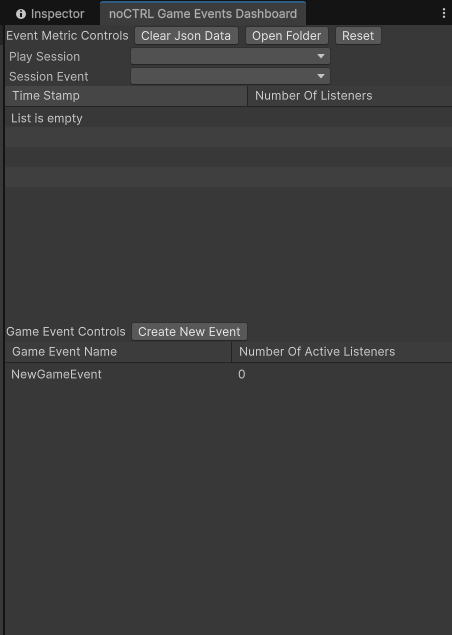
Right now, metrics are being collected and exported to JSON whenever Unity disables objects. That’s functional but not ideal — I want to serialize when exiting Play Mode instead. Moving that logic into the editor callbacks is next.
The output looks like this:
1
2
3
4
5
6
7
8
9
10
11
12
13
14
15
16
17
18
19
20
21
22
23
24
25
26
27
28
29
30
31
32
33
34
35
36
37
38
39
40
41

{
  "session": {
    "startTime": "2025-12-21T22:14:05.1234567Z",
    "endTime": "2025-12-21T22:16:42.9876543Z",
    "durationSeconds": 157.864,
    "unityVersion": "2022.3.12f1",
    "gameEventsVersion": "1.2.0",
    "projectName": "MyCoolGame"
  },

  "events": [
    {
      "eventId": "PlayerJump",
      "createdAt": "2025-12-21T22:14:05.1234567Z",
      "totalInvocations": 42,
      "uniqueListeners": 3
    }
  ],

  "invocations": [
    {
      "eventId": "PlayerJump",
      "timestamp": "2025-12-21T22:14:06.0001234Z",
      "listenerCount": 2,
      "invocationIndex": 0
    }
  ],

  "listeners": [
    {
      "listenerId": "PlayerController",
      "eventId": "PlayerJump",
      "registeredAt": "2025-12-21T22:14:05.2000000Z",
      "unregisteredAt": "2025-12-21T22:16:00.0000000Z",
      "lifetimeSeconds": 114.8
    }
  ]
}
It’s basic, but already enough to start seeing patterns in how events flow.
Next Steps
Short-term plans:
- Visualize event activity in real time (timeline graphs or heatmaps)
- Track listener lifetime more accurately (domain reloads are messy)
- Handle Play Mode boundaries cleanly (finalize once per session)
Longer term:
- Aggregate session data to reveal which systems communicate most
- Detect “dead” events that never fire
Final Thoughts
What started as curiosity turned into one of the most unexpectedly useful debugging tools I’ve built.
Just like the Enigma analysts learned from message patterns, I’m realizing how much you can learn from how a Unity project talks to itself.
GameEvents Developer Metrics is still early, but it’s already reshaping how I think about visibility in event-driven systems — not just in Unity, but across everything I build.